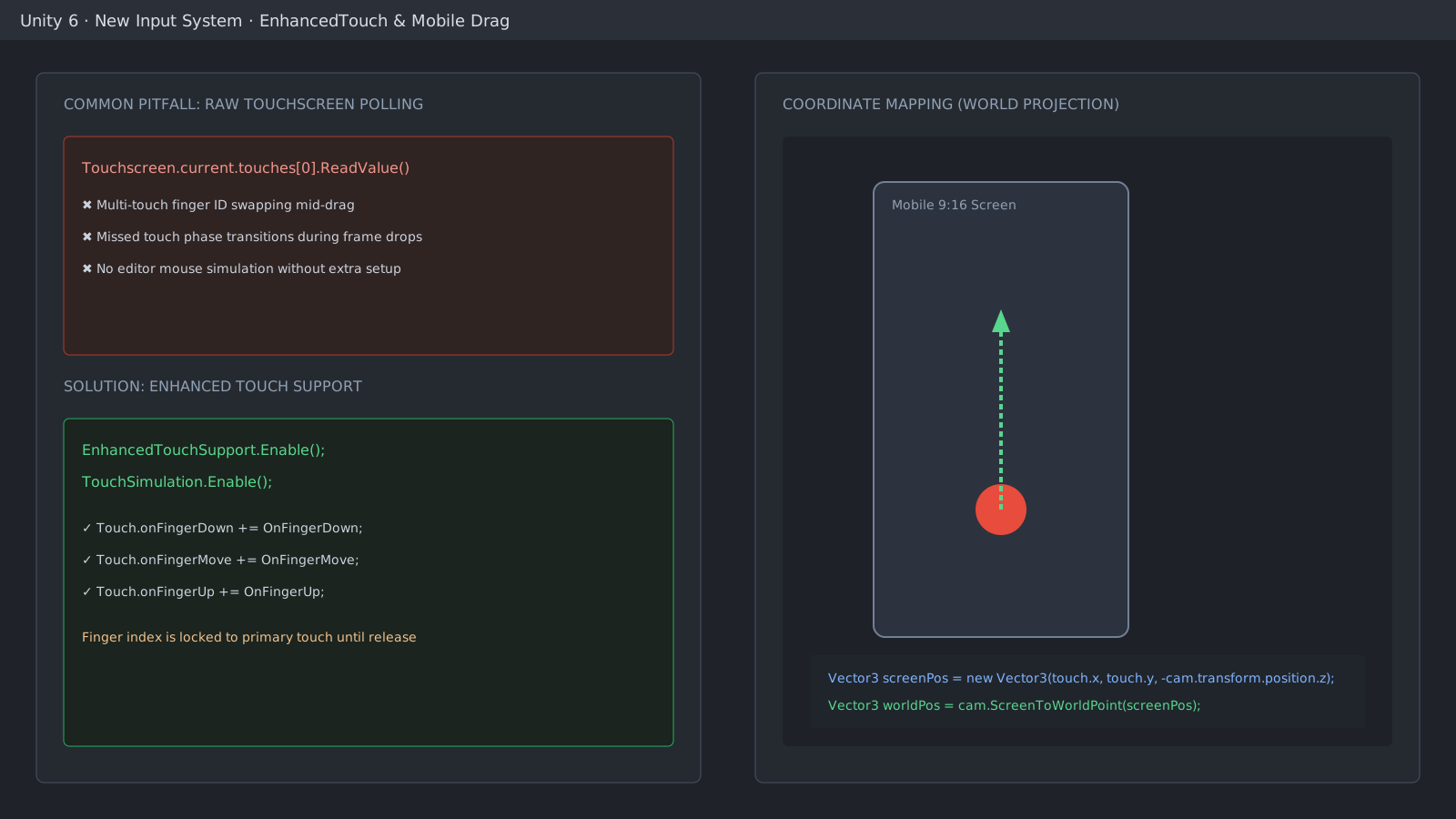
Enable EnhancedTouchSupport for robust finger tracking
Polling Touchscreen.current.touches in Update frequently drops phases or swaps indexes during multi-touch gestures. EnhancedTouchSupport provides stable Finger handles and event callbacks that lock onto the primary touch until release.
using UnityEngine;
using UnityEngine.InputSystem.EnhancedTouch;
using Touch = UnityEngine.InputSystem.EnhancedTouch.Touch;

public class DragAimController : MonoBehaviour
{
    private Finger activeFinger;

    private void OnEnable()
    {
        EnhancedTouchSupport.Enable();
        TouchSimulation.Enable();
        Touch.onFingerDown += HandleFingerDown;
        Touch.onFingerUp += HandleFingerUp;
    }

    private void OnDisable()
    {
        Touch.onFingerDown -= HandleFingerDown;
        Touch.onFingerUp -= HandleFingerUp;
        EnhancedTouchSupport.Disable();
    }

    private void HandleFingerDown(Finger finger)
    {
        if (activeFinger == null)
            activeFinger = finger;
    }

    private void HandleFingerUp(Finger finger)
    {
        if (activeFinger == finger)
            activeFinger = null;
    }
}
Fix the Z distance in ScreenToWorldPoint
Calling ScreenToWorldPoint with z=0 projects the position onto the camera near plane. In 2D orthographic games, pass -camera.transform.position.z as the vector Z coordinate to accurately map to the gameplay plane.
using UnityEngine;
using UnityEngine.InputSystem.EnhancedTouch;

public class AimWorldProjector : MonoBehaviour
{
    [SerializeField] private Camera targetCamera;

    public Vector2 GetWorldTouchPosition(Finger finger)
    {
        if (finger == null || finger.currentTouch.history.Count == 0)
            return Vector2.zero;

        Vector2 screenPos = finger.screenPosition;
        float distanceToPlane = -targetCamera.transform.position.z;
        Vector3 worldPoint = targetCamera.ScreenToWorldPoint(
            new Vector3(screenPos.x, screenPos.y, distanceToPlane)
        );
        return worldPoint;
    }
}
Enable Editor mouse simulation
Calling TouchSimulation.Enable() lets mouse clicks behave identically to touch events in the Unity Editor, accelerating aiming and trajectory tuning without device deploys.
Official documentation review
Verified
Reviewed the article's code and procedure against official Unity documentation and marked it ready for publication. This is not a claim of an independent Unity project or device reproduction; version- or device-specific reports will be checked in that environment as follow-up.