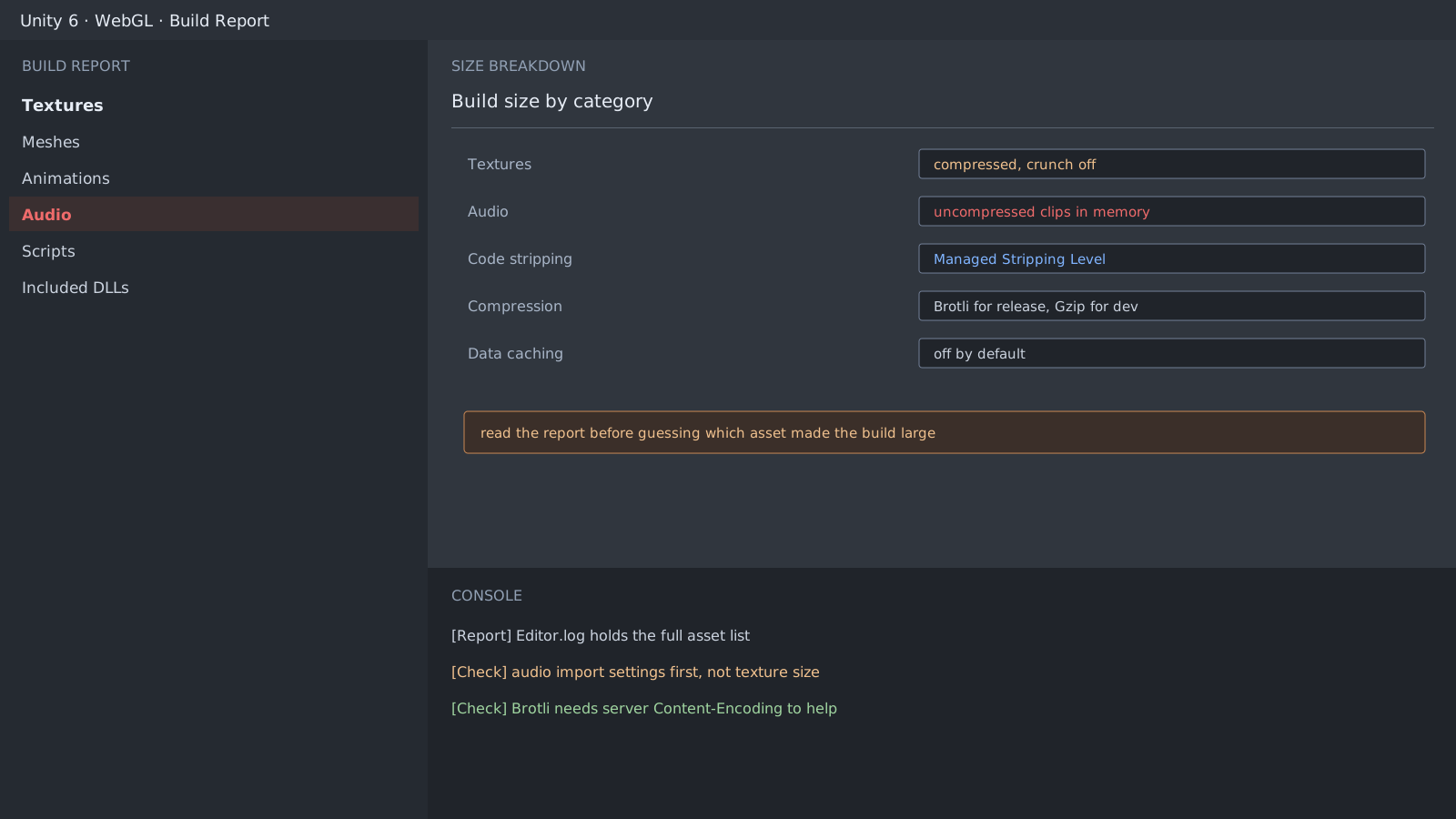
Drop the guess first
A large build makes everyone suspect textures. Our game is a 2D URP brick breaker with few textures, and the build was still heavier than expected. Opening the build report and splitting it by category put audio at the top: every short effect was imported to sit uncompressed in memory.
What the audio import settings actually decide
- Split Load Type: Decompress On Load for short effects, Streaming for long music.
- Revisit Compression Format per platform. WebGL often keeps the default.
- Force To Mono is inaudible on most effects.
- Preload Audio Data on everything stretches the first scene load.
// Auditing import settings in code is faster than clicking
var importer = (AudioImporter)AssetImporter.GetAtPath(path);
var settings = importer.GetOverrideSampleSettings("WebGL");
settings.loadType = AudioClipLoadType.DecompressOnLoad;
settings.compressionFormat = AudioCompressionFormat.Vorbis;
importer.SetOverrideSampleSettings("WebGL", settings);
Compression is half a server setting
Choosing Brotli in the build does nothing if the server never sends that Content-Encoding. Check the response header before concluding the setting did not help.
$ curl -sI https://example.test/Build/game.wasm | grep -i content-encoding
content-encoding: br
Expected result and next step
When the largest line in the report changes, the first cut is done. Managed Stripping Level is next, and because it removes types only reached by reflection, run the build on a device before shipping it.
Official documentation review
Verified
Reviewed the article's code and procedure against official Unity documentation and marked it ready for publication. This is not a claim of an independent Unity project or device reproduction; version- or device-specific reports will be checked in that environment as follow-up.